Showing posts with label econnect. Show all posts

Wednesday, September 7, 2011

Mysterious eConnect Error: The stored procedure does not exist. Watch your schemas!

I recently upgraded a Dynamics GP Visual Studio Tools AddIn from GP 9 from GP 2010.  The AddIn reviews some GP transactions, performs some calculations, and then inserts new payroll transactions using eConnect.

The upgrade was straightforward and worked fine on my development server.  It installed smoothly on the client server and looked like it was working...right up to the point where the following eConnect error occurred:

The stored procedure 'taCreatePayrollBatchHeaderInsert' doesn't exist.

In this particular case, the AddIn was inserting an entire payroll batch, but the specific stored procedure in the error could have been any eConnect procedure.

I've never seen that type of error before, so I started with the obvious--I checked the SQL database to see if the procedure existed.  It definitely did exist in the database.

I then thought that maybe it was a permission issue, so I confirmed that the eConnect domain user was setup as a SQL Login, and that an eConnect user was properly setup for the company database.  I even checked the DYNGRP role to make sure that the stored procedure was listed with EXEC permissions.

Everything looked fine.

I did a little research on the error, and saw a post that recommended checking the database connection string.  If the database was not specified properly, and the import was somehow referencing the master database or even DYNAMICS, naturally that would cause this type of error.  So I added some debugging code, but the connection string looked fine--the proper GP company database was being referenced.

I was running out of options, so I dug out the Direct Document Sender, a tool used by GP support to troubleshoot eConnect issues.  It allows you to specify the database connection info, select an XML file containing the eConnect data to be imported, and then it sends the XML document off to eConnect.  This helps to rule out any bugs in your custom integration.

Interestingly, the Direct Document Sender received the same error message indicating that the stored procedure did not exist.  Although it helped to rule out the VS Tools AddIn and its eConnect code, and it helped me realize that there was a lower level issue with the client's environment, I still didn't have any specific clues as to the real cause.  I was thinking that maybe it was a problem with the eConnect procedures in the client's databases, or that perhaps something did not upgrade properly from GP 9 to GP 2010.

As a long shot, I ran the dbmaintenance.exe utility in the Dynamics GP application directory to recreate the Functions and Stored Procedures on the company database.  That completed successfully, but when I ran the integration and the Direct Document Sender, both still received the same error.

As a final test, I wanted to get a baseline to test against in the client's environment, so I created the TWO / Fabrikam test company database.  GP Utilities setup the company, and I then went into SQL Server Management Studio and added the eConnect login as a user on the TWO database.

To perform my test with the Direct Document Sender (which uses Windows authentication to access the SQL Server), I logged into the client's server as the eConnect domain user, just to make sure that no other user account variables were involved.  I launched the Sender and started to setup the connection string, but when I went to select the database, TWO was not listed.  I verified everything several more times, but TWO didn't show up.

I then logged out of the server and logged back in as the Administrator.  When I did that, the TWO database did show up.  Puzzled, I checked and rechecked the eConnect user for the TWO database, but it looked fine.  For some reason I couldn't get TWO to appear in the database list.

Since this didn't make any sense, I went back to the SQL Server Login window for the eConnect user and checked the settings for at least the fifth time.  While I was staring at the window, something caught my attention.


I scrolled to the right and saw that the user record for the TWO database had a Default Schema of dbo, but the records for the company databases had the eConnect user listed as the Default Schema.

The light bulb instantly came on and it all made sense.  Well almost all.

If you aren't familiar with SQL Server Schemas, you should definitely read about them just enough to understand what they are.   They are not used by GP, so you don't need to be an expert; however, because they are not used by GP, if someone happens to use them in a GP database, it will likely cause problems, so you will need to know just enough to identify, understand, and resolve the issue.

Because the eConnect SQL user was assigned a Default Schema other than dbo, when eConnect logged into the database and tried to execute the payroll stored procedure, it literally didn't exist.  In fact nothing existed--no tables, no stored procedures, nothing.

I tried changing the Default Schema for the user back to dbo, but for some reason that didn't solve the problem.  I had to delete the eConnect user and eConnect schema completely from all databases, and delete the eConnect login for good measure, and then recreate the login and users with the proper dbo default schema.

Once I did that, the TWO database showed up in Direct Document Sender, and sure enough, eConnect worked just fine.  The AddIn immediately started working properly and was able to import payroll batches.

I'm not entirely sure how the eConnect schema got created on the SQL Server or how it was assigned as the Default Schema for the eConnect user on the company databases.  And I don't understand why changing the Default Schema back to dbo didn't fix the problem.  But in the end, it was easy enough to remove the users completely and recreate them.

Steve Endow is a Dynamics GP Certified Trainer and Dynamics GP Certified IT Professional in Los Angeles.  He is also the owner of Precipio Services, which provides Dynamics GP integrations, customizations, and automation solutions.

http://www.precipioservices.com

Monday, May 17, 2010

eConnect "System Error", Part D'eux

Back in January I wrote about some fun I was having with eConnect 9 and the dreaded "System Error" message. I must really, really like that error; it certainly seems to like me.

Back then I made sure that my eConnect calls had a SqlException error handler, and things worked fine. Until, of course, I got the System Error yet again on a recent integration with eConnect 9.

I actually developed the integration in GP 10, and it worked fine, but then realized the client was using GP 9, so I quickly made the simple changes required to convert it to GP 9. After the first successful test import, the error started to occur.

Staring at the error in disbelief (Why me???!!!!), I checked my try / catch block and confirmed that I did have the SqlException handler. I checked my document XML, I checked my connection string, I tried adding and removing different fields from my document, but nothing worked: System Error.

So then I copied the project over to a new server and tried it, and it worked! So then I was really puzzled, as the issue seemed machine specific.

Having run out of ideas, I went to check the PartnerSource support KB to see if there were any hints. And miraculously, I found the gem that is called KB 943133.

When I first started reading the knowledge base article, and it just mentioned including a SqlException exception, I started to get disappointed, since I already had that.

But, after reading the sample code in the article, I found something new.

Within a SqlException exception, there is a collection of SqlClient.SqlError error objects. When my code hit my SqlException, I was just trying to output "ex.Message". I was not looping through the error objects and getting the multiple potential messages, like this:

catch (eConnectException ex)
{
Console.WriteLine(ex.Message);
}
catch (System.Data.SqlClient.SqlException ex)
{
foreach (System.Data.SqlClient.SqlError myError in ex.Errors)
{
Console.WriteLine(myError.Message);
}
}
catch (System.Exception ex)
{
Console.WriteLine(ex.Message);
}


The code in red was what I was missing.

Once I added this, the System Error disappeared and I got a meaningful error indicating that I had a duplicate primary key error. I had manually deleted some test records via SQL in my TWO database while testing, and I missed a table, so eConnect was failing due to a duplicate insert. Which is why the error only happened on the first server, but not the second.

Once again, this is pretty simple stuff that was actually posted on a few sources and widely available, but since the standard ex.Message had been working for me, I never bothered to look further at any other samples.

Since I can't recall running into the System Error with eConnect 10, my impression is that this is primarily an issue with eConnect 9. But now that I have the code setup properly, hopefully that solves the issue, permanently.

System Error, if I ever see you again, it will be too soon.

Wednesday, April 28, 2010

Using eConnect to import Inventory Adjustments with Multi-Bin

I recently fielded a question on the GP Developer newsgroup about an eConnect error that occurred when trying to import inventory adjustments with multi-bin.

The developer was able to import positive inventory adjustments, but negative adjustments would fail with this error:

The QTY entered has to be > 0

After poking around in the GP Item Transaction Entry window, I found the inconsistency that was causing the problem.

The Item Transaction Entry window is one of the few places in GP where you can enter a negative quantity. I admit that I truly enjoy being able to type a negative number in the Quantity field, since it's such a rare treat in GP.


The negative quantity is convenient and logical for decreasing inventory quantities; however, it is not necessarily consistent with the rest of GP, and when it comes to the Bin Quantity Entry window, GP suddenly reverts to the typical positive-only behavior.


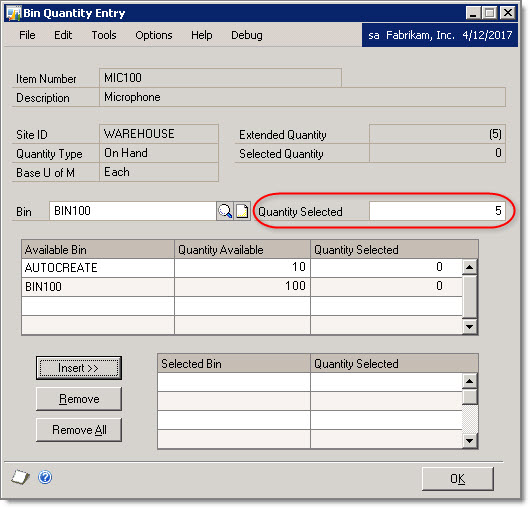
In the Bin Quantity Entry window, you must enter a positive value in the Quantity Selected field, even though the transaction is a negative inventory adjustment. Yet there isn't any field or option on the Bin Quantity Entry to specify increase or decrease.

Once you insert the bin and quantity selection, note that the Extended Quantity is negative, but the Selected Quantity is positive.


This is a pretty poor, inconsistent design that can cause confusion in both the GP user interface, as well as the eConnect API.

If you look at the eConnect documentation for the taIVTransactionMultiBinInsert node, you'll see a node called ADJTYPE, which can be 0=Increase or 1=Decrease. Why this exists in eConnect but not in the GP user interface, well, I'll leave that for others to ponder.

So to summarize, when you import a negative inventory adjustment via eConnect using multi-bin, you have to first create a negative inventory adjustment, then you have to create a positive multi-bin record, and then you also have to specify that the multi-bin record is a Decrease adjustment. Obvious, right?

Why the Bin quantity entry window (and taIVTransactionMultiBinInsert) accepts only positive values for a negative inventory adjustment is yet another historical GP mystery that I'm sure has some highly rationalized explanation, but for now I'm going to chalk it up to them wanting to keep us on our toes.

Monday, April 19, 2010

Selecting Distinct Node Values from an eConnect XML Document

I'm still working on a long project that involves using eConnect to import millions of transactions into Dynamics GP. Yes, millions. Over 7 million transactions so far, and many more to go before I sleep.

In this case, it was easier for the client to provide the data in XML format, so I'm importing the transactions by sending the XML directly to eConnect. This has had some benefits, but also posed several challenges.

One challenge is that the client is even including the Batch Number in the XML data. Normally this wouldn't be an issue, but as part of another requirement, I need to know every batch number that was created by each XML file.

To do this, I would like to use XPath to query the XML file and provide me with a distinct list of batch numbers. There are other techniques, but at the moment I believe that XPath is the simplest approach.

This was a bit trickier and more obscure than I realized, and although I am a big fan of XPath, I'm a bit rusty with complex queries, so this was definitely outside of my comfort zone. The tricky part is that there are many different ways to get a distinct list of nodes or node values, and your XML structure and the specific distinct values you need will dictate which approach and syntax you use.

I happen to be working on the POP Receipt import at the moment, so I'll use it's XML as an example. I basically need distinct values for the following node:

eConnect/POPReceivingsType/taPopRcptHdrInsert/BACHNUMB

Or:

//taPopRcptHdrInsert/BACHNUMB

To figure out how to do this, I dug through several similar requests on Experts-Exchange.com and discovered an answer that led me to create the following XPath query:

//taPopRcptHdrInsert[not(BACHNUMB = preceding::taPopRcptHdrInsert/BACHNUMB)]/BACHNUMB

This compact little gem scans the entire XML file (which in my case has thousands of transactions) and returns a tidy node list of distinct batch numbers.

To use it, I just use a SelectNodes statement:

batchNodes = popXML.SelectNodes("//taPopRcptHdrInsert[not(BACHNUMB = preceding::taPopRcptHdrInsert/BACHNUMB)]/BACHNUMB")

Is that cool, or what? (the inner geek in you screams "YES!")

You could use a similar XPath query to find a unique list of customer IDs, vendor IDs, transaction numbers, item numbers, you name it.

Full credit goes to the geniuses that invented XPath, and the clever folks on Experts Exchange that showed me how to use it.

Wednesday, April 14, 2010

VS 2008 .NET 3.5 Integration Error: Application has failed to start because the application configuration is incorrect

I just deployed a new .NET integration for Dynamics GP, and when I tried to launch the application on the client's server, I received this message:


"This application has failed to start because the application configuration is incorrect. Reinstalling the application may fix this problem."

These errors appeared in the Event log:


"Syntax error in manifest or policy file"


"The application failed to launch because of an invalid manifest."


Since I have successfully deployed other .NET integrations on this server, I realized that this one was a little different. My prior integrations were developed with Visual Studio 2005 and .NET 2.0. Because this new integration utilizes the .NET LINQ extensions, and I used Visual Studio 2008 and .NET 3.5.

Based on a search of the error, it seems that it can be caused by several completely different reasons. Sometimes it is due to missing C++ service packs, sometimes it is due to an issue with the XML configuration file.

In my case, the server is a Windows Server 2003 machine, and it does have .NET 3.5 SP1 installed, so it didn't seem that the server resources were the issue. After further digging, I came across a blog post that discussed the error.

It turns out that the error is caused by the Manifest setting in Visual Studio 2008. When it embeds the manifest in the application, this appears to sometimes cause issues on older (non-UAC) operating systems.

Changing the manifest setting to "Create application without a manifest" resolved the issue for me.


MSDN provides the following information about the Manifest setting. When they say "earlier applications", I'm assuming that also means "earlier operating systems".

http://msdn.microsoft.com/en-us/library/ms247046(VS.90).aspx

Manifest

Selects a manifest generation option when the application runs on Windows Vista under User Account Control (UAC). This option can have the following values:

Embed manifest with default settings. Supports the typical manner in which Visual Studio operates on Windows Vista, which is to embed security information in the application's executable file, specifying that requested ExecutionLevel be AsInvoker. This is the default option.

Create application without a manifest. This method is known as virtualization.Use this option for compatibility with earlier applications.

Friday, April 9, 2010

Invalid object name 'DYNAMICS..taErrorCode'

Full moon? Sun spots?

Tonight I was installing a new eConnect integration on a client's development server.

When I ran the integration, I received the following SQL Exception error:

Invalid object name 'DYNAMICS..taErrorCode'

I've developed and deployed countless eConnect integrations, and have never seen this before. A search for this message via Google and PartnerSource produced no meaningful results.

When I checked the Dynamics database, sure enough, there was no taErrorCode table. eConnect 10 was installed and configured on the server, and the Release Info tool even reported that it was installed on all databases, but for some reason the taErrorCode table did not exist.

I didn't install GP on the server, and I can't explain how or why the table would be missing, or what else may be missing. I also don't know of a "proper" way to recreate and populate the table.

I ended up scripting the table on my development server and manually recreating it on the client's server.

For the over 7,000 records in the table, I then tried to use the SQL Import Export Wizard to export the data from my machine to a file that I could then import on the client's machine. But after numerous cryptic errors that prevented the file from importing, I had to give up on that option.

I eventually created a new database on my server, copied the table and its contents to that empty database, backed up the database, restored it on the client's server, and then used the Import Wizard to transfer the data from that database to DYNAMICS.

That seemed to resolve the issue, and now the integration seems to work.

Bizarre.

Monday, January 18, 2010

Troubleshooting eConnect "System Error" Message

Over the last several months, I have developed several eConnect integrations for a client. The integrations work fine on my development machine, but sometimes when the integrations are run on the client server, eConnect generates errors and simply returns the text "System Error", with no additional detail.

After much poking around, I discovered that in general, this is often caused by a required eConnect field that is not being populated when the data is sent to eConnect. But other times, I have been unable to explain why the System Error is occurring.

I thought I had searched the GP Knowledge Base previously to see if there was any reference to these frustrating "System Error" messages, but today, after yet another error, I decided to check the KB again.

Sure enough, there is KB article 943133 that discusses the System Error. Not sure why I didn't see it earlier.

It appears that I used an older copy of my .NET class that calls eConnect. I had a catch block for an eConnectException and a generic Exception, but not for a SqlException.

I know that Steve Gray has pointed this out on his excellent eConnect forums, so I knew that any call to the eConnect_EntryPoint should have all three catch blocks, but I just didn't have the SqlException catch block in my code for this client, and it didn't dawn on me that this is why I only received "System Error" with no additional detail.

I take the blame for this oversight, but I don't think the errors are all my fault. The client does not have the latest release of eConnect 9 installed, so it does seem that eConnect 9.0.1 does have some flaws. Instead of returning errors for certain field level issues in the XML data, it seems to miss these errors and attempt to send the XML off to the SQL stored procedures, which is why the SqlExceptions are being thrown.

Running the exact same .NET integration with the same source data on eConnect 9.04 on my server does not generate any errors, so my guess is that these are quasi-bugs in eConnect 9 that have been resolved in service packs.

So lesson #2 is to make sure to install eConnect service packs!

And with that, I return to the pouring rain here in Los Angeles...

Monday, October 5, 2009

Develop with XML? You had better know XPath!!!

I recently had to work on a VB .NET app that made me feel great about my modest development skills. I know I have weaknesses and gaps in my development skills portfolio, but one thing that makes me shake my head and roll my eyes is when I see code that tries to work with XML without using XPath. If you work with XML, and if you don't know about XPath and when you should use it, you really need to spend a few hours learning it.

I started working with XML in 1999 with MSXML3, using DOM and XPath extensively, and then later using extremely elaborate XSLT to do presentation layer transformations for a large web site. Admittedly, back then XML was extremely overhyped, but since then, I haven't met a developer that is comfortable with XPath, let alone XSLT. I'm sure they are out there, I just haven't had the luck to meet them.

The app in question (an add on window for Dynamics GP) was developed by someone a few years ago, but was never really finished, and therefore the client never implemented it. I got the honor of finishing the required functionality and getting it to work properly.

I ignored the fact that this extremely simple, single window "application" with the most rudimentary functionality was completely over-engineered (i.e. 3 tiers). But when I came across code that read a hand coded XML configuration file, I stared in disbelief.

First, why the developer created a custom XML file instead of using the My.Settings feature in Visual Studio 2005 puzzles me. I'll give him the benefit of the doubt and assume that he was using an old version of Visual Studio for some reason. But then I saw this code, which should induce horror in any developer that knows how to work with XML:

Public Function getSQLConnection() As String

Dim xmlRdr As XmlTextReader
Dim sqlConn As String = ""
Dim sDirectory As String = System.Windows.Forms.Application.StartupPath()
Dim sXmlPath As String = sDirectory & "\xmlTrainTemplateConfig.xml"
Try
'create xml reader
xmlRdr = New XmlTextReader(sXmlPath)
'Disable whitespace so that you don't have to read over whitespaces
xmlRdr.WhitespaceHandling = WhitespaceHandling.None
'read the xml declaration
xmlRdr.Read()
'read the 'Configuration' tag
xmlRdr.Read()
'Read the 'Config' tag
xmlRdr.Read()
'Get the 'Config' Attribute Value
If xmlRdr.GetAttribute("type") = "SQL" Then
'Read element 'ConnStr'
xmlRdr.Read()
'Get the 'ConnStr' Element Value
sqlConn = xmlRdr.ReadElementString("ConnStr")
End If
'close the reader
xmlRdr.Close()
Catch EX As Exception
Dim exCustom As New Exception("Error reading xmlTrainTemplateConfig.xml: " & sXmlPath, EX)
Throw exCustom
Finally
getSQLConnection = sqlConn
End Try

End Function


Okay, very funny, I get it, practical joke, right? Seriously, so where is the real code that reads the config file?

So, let me summarize. Reading an XML file line by line, making assumptions about the order of each node/line, and then having to test attribute and element values to see if you are reading the correct node completely defeats the purpose of using an XML file. You might as well just use a text INI file and save yourself time and embarrassment.

The code sample above is, simply, how not to work with XML.

Now, let's try another approach. There are probably a dozen better ways to get the job done, but I'll throw out just one that didn't require any thought or design. Doesn't this look just a tad bit better?

Dim xmlDoc As New XmlDocument
xmlDoc.Load(sXmlPath)
sqlConn = xmlDoc.SelectSingleNode("//ConnStr").InnerText.Trim

This approach uses the most rudimentary XPath node selection expression ("//") that searches the entire XML document for any matching nodes. Technically, this is a very sloppy technique, but like I said, no thought required, and we're dealing with a private config file, so we don't need to be very rigorous.

If you aren't familiar with XPath but want to learn more, I would recommend reading this every good, very simple tutorial:

http://www.w3schools.com/XPath/default.asp

And here is the XPath chapter for the O'Reilly book "XML in a Nutshell" that appears to be available for free online:

http://oreilly.com/catalog/xmlnut/chapter/ch09.html

There are plenty of other XPath references, so it shouldn't be hard to at least learn the basics and bookmark some good references for later use.

To close, I'll leave you with a practical example of how XPath can be used with eConnect. I recently fielded an eConnect question on Experts Exchange where someone asked how they could delete specific taSopLineIvcInsert nodes from an XML document. So if you have an XML document with 500 SOP line items, and you need to delete just 5 specific items, how would you do it?

One way is to try looping through all of the 500 line nodes and check each one to see if it matches the 5 that you need to delete. But that means your code is wasting time checking 495 lines that do not need to be deleted. Wouldn't it be nice to just jump into the XML and select the 5 that you need to delete without having to read the other 495? How does this look?

xmlDoc.LoadXml(myXML)
xmlNode = xmlDoc.SelectSingleNode("//taSopLineIvcInsert[ITEMNMBR='X205']")
xmlNode.ParentNode.RemoveChild(xmlNode)


Pop Quiz: Knowing what you know about SOP lines in Dynamics GP, and now that you are an expert on XPath, what is potentially wrong with the sample code above?

I'll reward the person who gives the first correct answer with a cold beer, or hot cup of coffee, in Fargo at the GP Technical Conference in November. (Winner must be present to receive prize!)

Monday, May 4, 2009

eConnect error: Fail to invoke remote RPC method

This appears to be a variant of the DTC and network configuration issues that I have discussed earlier, here and here.

Once again, DTCPing came to the rescue.

The client was running the eConnect integration on a laptop in a docking station, so it had both a wireless network connection and a wired connection.

When I ran DTCPing on the client, it ran fine and was able to connect to the server. But on the server, I received the familiar -->gethostbyname failure error message.

It turns out that the wireless network card was issued an address on a different subnet than the wired connection, which itself should be fine, but for some reason, the server could ping the wired IP address, but not the wireless IP address.
And the server happened to be clinging to the wireless IP address for the laptop, preventing DTC from communicating back to the laptop.

To resolve the issue temporarily, I edited the hosts file on the server at C:\Windows\System32\drivers\etc\hosts and added a new line to force map the laptop computer name to the wired IP address.

After running nbtstat -R and ipconfig /flushdns, the server finally started to ping the laptop successfully on the wired network card.

Running DTCPing again, the gethostbyname error went away, and the usual Windows XP "access is denied" error returned, which I now ignore.

We then ran the integration on the laptop, and it worked fine.

The permanent solution for this client is a little more challenging. I suspect that their wireless network limits or blocks traffic to the wireless clients for security reasons, but that also prevents DTC from working properly. The best solution I could think of at the moment is to add a fixed address record in their DNS server for the laptop's wired network card, and/or give the laptop a static IP address for the wired network card, to try and force the GP server to always resolve to the wired IP address.

Cannot generate SSPI context error message

A client has been using an eConnect integration for months without any issues, but all of a sudden last Friday, he received this error when trying to run the integration:

"Cannot generate SSPI context"

Whenever I see a Dynamics GP or SQL Server related error with "SSPI", I instantly assume that it has something to do with Windows authentication on SQL Server. Here is a Microsoft KB article explaining more about the obscure mechanics of SSPI and the error.

To summarize that article, here are the steps that I took to try and troubleshoot the error:

1. From a workstation, open a command prompt
2. Type the command: ping sqlservername
3. Type the command: ping -a sqlserveripaddress

For #2, you should receive a response indicating "Reply from..." and the SQL server's IP address.

For #3, you should receive a similar reply, but you should also see the fully qualified name of the SQL server (i.e. gpsql.company.local)

If either one of those gives you an error or does not return the proper server IP address or name, you probably have a DNS issue that needs to be resolved.

If those steps look good, as they did for my client, try these steps.

1. On the GP SQL Server, open the Services applet (Start --> Run --> Services.msc)
2. Locate the service for the GP SQL Server instance (i.e. SQL Server (GP))
3. Look at the "Log On As" column, to see what account the service is using to run
4. If the SQL Server service is running with an account other than Local Service, it is likely that there is a problem with the account permissions, the account password, or the Domain communication.

In my case, I found that the SQL Server service had been setup to use the domain Administrator account (which is not recommended for several reasons).

And it turns out that the Administrator password was reset last Friday (one of the reasons why you should not use it for any Windows services), which was the day that the errors started occurring.

My speculation is that even though the SQL service was still running with the Administrator credentials, the password change affected Kerberos authentication for new Windows authentication connections to SQL server. And of course, because eConnect only uses Windows Authentication, and GP only uses SQL Authentication, that is why GP users didn't receive any errors, but the eConnect integration no longer worked.

So, I opened the service properties for each of the SQL Server services that used the Administrator account and updated the Administrator password for each of them. I was informed that the service would have to be restarted for the changes. After getting all users out of GP and restarting all of the SQL services (server, agent, browser, etc.), the error went away and the integration worked fine!

Of course, there is still the issue of the domain Administrator account being used for Windows services. I will be scheduling a time with the client to create a dedicated SQL services domain account, and switch the services over to use that account.

One caution about using a domain account to run SQL Server: You will need to be careful with the permissions. The account will need to have a fair amount of local access on the server so that it can manage the database files, and it will also need the ability to Log On As A Service, which is setup in the local security policy. Finally, it will need to have adequate permissions to create its own SPN for Kerberos authentication (as mentioned in the MS KB Article). So make sure to plan for some downtime and testing if you decide to switch to a domain account for SQL Server.


UPDATE: After reviewing the Google results further regarding this error, it appears that there are several other more innocuous or low level causes for the SSPI error. So if the above steps don't resolve the issue quickly, you may have a more complex issue on your hands. Here are two examples of other possible causes that are not explicitly referenced in the MS KB article:

http://blogs.msdn.com/sql_protocols/archive/2005/10/19/482782.aspx

http://sqlblogcasts.com/blogs/grumpyolddba/archive/2008/07/19/cannot-generate-sspi-context.aspx


UPDATE April 2018: Someone shared an additional angle to the SSPI context error saga. Apparently the error can occur if there is a problem with an "SPN".

https://msdn.microsoft.com/en-us/library/ms677949(v=vs.85).aspx


If, for some reason, the SPN associated with a Windows Service, such as the SQL Server service, becomes invalid, this can cause the infamous SQL Server SSPI errors.  I believe this might occur if the server name was changed.

The apparent solution for this is to inspect the SPN information for the domain account used by SQL Server and potentially delete and recreate the SPN.

You would use the "setspn" command to do this.

https://technet.microsoft.com/pt-pt/library/cc773257(v=ws.10).aspx


To view SPN information for the server, you apparently use "setspn -L"

You can use "setspn -D" to delete SPNs, then "setspn -S" to save new SPN information.

Note that there may be more than one SPN record for a given service account, so the -D and -S may need to be used more than once.

I have not performed this process before, but someone shared this example with me.  It isn't clear to me what the -L results actually show, as I don't see anything about SQL Server.


Note the -D and -S versions are called a second time with port 1433 listed.  I don't know if this is just a precautionary measure to clean up such records if they happen to exist, or if those are mandatory for SQL Server.


Steve Endow is a Dynamics GP Certified Trainer and Dynamics GP Certified IT Professional in Los Angeles.  He is also the owner of Precipio Services, which provides Dynamics GP integrations, customizations, and automation solutions.

You can also find him on Google+ and Twitter


Thursday, April 16, 2009

More than I ever wanted to know about eConnect and MSDTC

In my last post, I discussed the eConnect error that returned "The transaction has already been implicitly or explicitly committed or aborted."

I found that using the Enlist=False parameter on the eConnect transaction string would sometimes make the error go away, but at the risk of incomplete transaction handling.

The second possibility was that the MSDTC Transaction Manager Communication security setting needed to be changed to "No Authentication Required."

And the third possibility was that a firewall or network configuration issue was causing a problem.

Today I worked with the client to troubleshoot the issue, and it turns out that the Enlist=False trick no longer worked. We were now receiving the error with Enlist=False. I then tried setting both the server and client workstation to No Authentication Required. But that didn't work.

So, on to Plan C, to research what possible network configuration issues could cause the error.

While reading various forums, I came across some links to two free Microsoft tools that help diagnose issues with DTC network communications: DTCPing and DTCTester

DTCPing tests several lower level types of network communication between two machines to diagnose possible configuration issues that prevent DTC from working properly.

DTCTester operates at a higher level and connects to SQL Server, creates a temp table, creates a transaction as it inserts data, and then commits the transaction, utilizing DTC in the process.

Before testing it in the client's environment, I tested it on my development machines. Between two Windows Server 2003 HyperV virtual server, after a few tweaks and adjustments, I was able to get DTCPing to work fine, showing proper communication between the two servers.

When I tested it between my physical Windows XP workstation and a Windows 2003 HyperV virtual server, I was able to get some communication, but ultimately received an error.

On my XP workstation, I got:

RPC server is ready
Please Start Partner DTCping before pinging
++++++++++++Validating Remote Computer Name++++++++++++
Invoking RPC method on server1
RPC test is successful
++++++++++++RPC test completed+++++++++++++++
++++++++++++Start DTC Binding Test +++++++++++++
Trying Bind to server1
Binding call to server1 Failed
Session Down


And on the server, I got:

RPC server is ready
Please Start Partner DTCping before pinging
Please hit PING button to complete the test
++++++++++++Start Reverse Bind Test+++++++++++++
Received Bind call from XP
Trying Reverse Bind to XP
Error(0x5) at ServerManager.cpp @453
-->RPC reverse BIND failed
-->5(Access is denied.)
Reverse Binding to XP Failed
Session Down


Even after turning off all firewalls, verifying IP addresses, and checking configurations, I don't know the cause of the Access denied message. But since I knew two of my servers could communicate without errors, I tried the DTCPing tool in the client environment.

UPDATE: Reader 'Maxim' provided a solution for the Access Denied error. In HKEY_LOCAL_MACHINE\ Software\Policies\Microsoft\Windows NT\RPC, add or change the DWORD value "RestrictRemoteClients" = 0. This is apparently a network security / firewall feature that was enabled in Windows XP SP2 to restrict anonymous RPC access to a machine.

On the XP client machine, the DTCPing had no errors, but when I ran it on the server, trying to connect to the client, I received the following error:

Error(0xB7) at nameping.cpp @43
-->gethostbyname failure

I then tried to ping the client from the server, and sure enough, no response. After checking the IP addresses, I found that the server was resolving the client workstation name to the wrong IP address, presumably the result of the network move that had taken place recently. It appeared that the internal DNS server had not been updated with the new IP address.

As a temporarily solution, I added a record to the hosts file under C:\Windows\System32\drivers\etc, listing the actual IP address of the workstation along with its fully qualified domain name (i.e. XP.DOMAIN.local). I then ran nbtstat -R to purge the name resolution cache, and then performed a ping to confirm that the server would now use the proper IP address.

I wasn't sure if that was the cause of the problem, so I went ahead and tested with DTCTester, which completed its test successfully.

We then ran the eConnect integration, and it appeared to work fine--no more transaction errors!

Although it seems like an odd cause of the issue, I'm hopeful that the IP address fix was the solution and that the error will no longer occur. But the client has at least 35,000 more transactions to import, so I'll find out soon enough.

Tuesday, April 14, 2009

eConnect Error: "The transaction has already been implicitly or explicitly committed or aborted."

A client has been using an eConnect integration for several months now without issue. Recently, the client had to move their servers to a new data center, and now for some reason, the following error occurred when the integration attempted to create a new GL account:

"The transaction has already been implicitly or explicitly committed or aborted."

The error causes an exception to be thrown during the eConnect_EntryPoint call, and offers no other information.

I dont' yet fully understand the underlying cause of the error, but have come across two possible solutions.

The first, and apparently most common means of solving the problem is to add "Enlist=False" to the eConnect connection string. Unfortunately, I haven't been able to find a good explanation of the exact mechanics of how this parameter affects the connections and connection pooling with DTC and COM, but this modifies the way that eConnect uses connections and invokes transactions.

This approach did make the error go away, but after reading more on the issue, it seems that this solution only eliminates the error, but does not solve the underlying problem. By disabling transactions, it can possibly expose you to partial transactions and corrupt data.

The second solution is discussed on this forum thread. The last two posts mention that changing the MS DTC Security Settings to "No Authentication Required" may be the preferred method for resolving the underlying problem.

That particular authentication setting, under the "Transaction Manager Communication" settings, is typically set based on your network configuration. The eConnect Install and Admin guide offers the following instructions:


Configuring DTC

If the two computers are in the same domain, the default configuration for DTC can be used with eConnect. If you have made modifications to the security configuration for DTC, you must be sure the following settings are used:

  • Network DTC Access enabled
  • Allow Inbound communications
  • Allow Outbound communications
  • Mutual Authentication Required (when running in a domain environment)
  • No Authentication Required (when running in a Windows workgroup environment or the client machine is pre-Windows XP SP2)

If the two computers are in a Windows workgroup, or are in domains that do not have an established trust relationship, update your DTC security configuration to use No Authentication Required.


I've highlighted the key points in red. When you are running in a single domain environment, or in a multi-domain environment where a trust has been established, Mutual Authentication should work. But you will otherwise need to use No Authentication Required.

Finally, the same thread has a pointer over to an MSDN forum which discusses the issue in a non-eConnect context, and indicates that a firewall may cause DTC communication to be blocked.

Given what I've read, my current assumption is that when my client's servers were moved to the new data center, a new domain relationship was setup, or a network configuration change occurred that caused the DTC communication to stop functioning properly. The client workstation and GP server both are set to "Mutual Authentication Required", so this could be the real issue.

Later this week I'm going to modify my code to remove the Enlist=False connection parameter and switch both machines to No Authentication Required and see if that works.

Thursday, February 19, 2009

Project Accounting Integration Frustration: Customer Project Info

By Steve Endow

(This is a two-part post. In this first article, I'll describe the issue I ran into, and in the second article, I'll propose a more complete solution for dealing with the issue that can be applied to other situations where unique document/transaction/record numbering is required.)


I recently developed a project accounting integration using eConnect. The integration reads 4 columns from an Excel file, and then creates all of the records in GP to fully setup the project, from the customer, to the contract, to the PA accounts, all the way through to the project budget and status flags. There were a few interesting learning experiences along the way, but the most challenging was one that I least expected: the PA Customer Options window. When you create a new customer and have PA installed, there is a Project button in the lower right corner of the customer window. This record is normally setup automatically when a customer is created in GP when PA is installed. But it is not setup automatically by eConnect.

I know, you're thinking "How hard could that be? There's only ONE required field!". That's exactly what I thought too!

The first bump occurred when I found that eConnect does not have a transaction to create the PA Customer Options record. Okay, not a big deal, I just traced the data back to the PA00501 table. It's a simple table, and I was able to just use the zDP_PA00501SI stored procedure to insert my record. I only had to pass in two pieces of data: customer number and customer alias. Simple!

After a few records imported, I had fleeting touch of self-pride, until I got this error:

Violation of PRIMARY KEY constraint 'PKPA00501'. Cannot insert duplicate key in object 'dbo.PA00501'.

After checking the PKPA00501 index, I saw that it was complaining that I had a duplicate customer alias. And that's where the arcane fun starts.

The PA Customer Alias field is a very annoying field that is limited to 5 characters. Yup, just 5. Normally, when you open the PA Customer Options window, the customer alias defaults for you, so you typically don't notice it, don't pay any attention to the default value, and care how it is generated. If your customer ID is ACME001, your alias will default to ACME0. If your customer ID is 123456, the default alias is 12345. Simple, right? Not so fast, grasshopper!

As I'm importing 50,000 customers with blocks of sequential, 6 digit customer numbers, guess what. I have customer ID 123456, and 123457, and 123458. So...clearly I can't just use the first 5 characters of the customer ID, as all would have an alias of 12345.

So I did some tests in GP to see how it generates the alias. I found that if alias 12345 is taken, it will use 12341. If that is taken, it just increments the last digit, so 12342, 12343, etc. This is fine and dandy if you have customer IDs that are fairly distinct and well distributed, like ACMEROCKETS, or ABCMETALS. But if you have sequential, numeric customer numbers that are 6 digits or longer, you start to have some challenges.

Here's an example of customer IDs, and the default alias generated by GP. Think of this as a big train wreck occurring in very slow motion:

123450 = 12345
123451 = 12341
123452 = 12342
123453 = 12343
123454 = 12344
123455 = 12346 (12345 is already used)
123456 = 12347
123457 = 12348
123458 = 12349
123459 = 12340 (GP doesn't actually use zero, but for arguments sake, I included it)

Looks fine, right? 10 customers, 10 aliases. Simple and easy, right? Well, no, the train is definitely wrecking, it's just taking its time.

What happens for customers 123401 - 123410? In that case, the default numbering scheme then goes from using the first 4 characters of the customer ID, to the first 3. So customer 123401 will get an alias of 12310. But then what will customer 123101 use? See the problem?

This all leads to a preposterous situation where a customer 123700 might receive a default alias of 11000. It's just stealing numbers from another series, attempting to have the alias resemble the customer ID, and hoping they won't all need to be used.

So at first, before I realized how many customers I was dealing with, I thought I would just write a routine that would loop through alias numbers to find an available value--I basically mimicked the GP default alias generator. I used the first 4 characters of the customer ID, and if those 10 aliases weren't available, I moved on to the first 3 characters of the customer ID.

But then that resulted in duplicate aliases, as all of those 100 alias values were taken. So then I realized that I would then have to look through the aliases starting with the first 2 characters of the customer ID. That's 1,000 values. And even then I ran into situations where that wasn't enough.

The next step would be to use the customer's first 2 digits, and check 10,000 possible alias values. The train is definitely off the tracks at this point.

It became clear that there HAD to be a better way.

The quick and dirty approach first came to mind is to throw a letter into the mix. If my options included 12340 to 12349 and also 1234A to 1234Z, that gives me 26 more options--basically a "base 36" numbering scheme. Naturally that would work, right? Maybe as a temporary solution, but as thousands of more customers were created, I could still run into an issue. So I could do something like 123AA, where the last two characters could be alphanumeric. But if you try and write such a routine, it looks like a looping circus.

And there is another issue. This alias generation routine was in my .NET app, and in order to validate the alias, I have to make a call to SQL Server to check if the alias is in use already. So with every number I try, it's a query against SQL. Just plain bad design. If I were checking just 10 values, I'd let it slide, but thousands of values is out of the question.

So what's a better solution? I want to:

1) Generate a 5 character alias that "resembles" my customer ID
2) Make sure the alias does not already exist in PA00501
3) Generate the available alias values sequentially so that I don't have unecessary gaps
4) Eliminate looping in my code
5) Make one query against the database

This is actually a fairly common issue with business apps and databases, but there are many different nuances and business requirements around numbering, so there isn't necessarily "a solution" for all situations.

After thinking about the issue for a few minutes, I eventually remembered a story that a friend told me about a SQL Server guru that could magically generate a range of sequential numbers with a single SQL statement. That story led me to my solution, which I'll share in part two.


Link to Part 2:  https://dynamicsgpland.blogspot.com/2009/02/project-accounting-integration_20.html


Sunday, January 25, 2009

eConnect Bank Transaction Import: GL Batch quirks

I recently used eConnect to consolidate multiple GP companies into a single GP database. Part of that migration included importing any unreconciled bank transactions: Uncleared deposits, uncleared trx, and even undeposited cash receipts.

After a little bit of tedious coding to get all of the bank transaction types mapped correctly, the import worked well. Because we did not want the transactions to affect the GL, I made sure to turn of Post To and Post Through for both Bank Deposits and Bank Transactions. I then ran the import into the new production company, and we verified the counts and amounts, and all looked good.

But the next day the client noticed several unposted GL batches, with batch IDs corresponding to each of the companies that I imported. They appeared to be related to bank transactions, as the description for some of the JEs said "Bank Transaction", and had a type of CMTRX. After researching the transactions, I definitely confirmed that they were created by my eConnect import. But I had absolutely made sure to turn off Post To as well as Post Through!

So I did a test by turning off posting, and then manually entering a single bank transaction. As expected, no posting to GL, and no GL batch. Hmmm.

So then I re-ran the eConnect integration into a test company, making sure that Post To and Post Through were unchecked. Sure enough, a single batch with 99 JEs was created for the 99 bank transactions that were imported.

I then thought that it might be an implicit option based on the field values in my code. So I commented out the taBRBankTransactionHeader.BACHNUMB field in my code, thinking that maybe the fact that providing a batch number has eConnect create the GL batch regardless of the posting settings. I recompiled and ran the import into the test company again.

This time I got 99 GL batches! Without a batch number, eConnect reverts to posting each bank transaction separately, thereby creating a separate batch for each bank transaction.

So, from what I have observed:

1) eConnect will always create a GL batch for bank deposits and bank transactions, even if Post To is unchecked in the posting settings in GP. If you are doing a data migration using eConnect, be on the lookout for those batches so that they can be deleted.

2) eConnect provides you with the option of specifying a batch number for bank transactions, or not, depending on how you want the transactions to be posted in the GL. I can't imagine anyone wanting to have separate GL batches for each bank transaction, but I guess anything is possible.