In my last post, I mentioned that I was helping a client upgrade to GP 2010 SP3 because SP1 has an eConnect bug.
The GP 2010 SP1 eConnect bug, described here by David Musgrave, effectively prevents eConnect from importing standard GL journal entries. The only way to resolve the issue is to install a newer hotfix or service pack so that the stored procedures are updated.
While working with the client to test the eConnect journal entry import, I happened to notice that logging into GP took an eternity. After selecting a company, it would take several minutes for GP to fully load.
The client indicated that the slow performance was normal for them, and that all users had the same experience on their Terminal Server and even their SQL Server. There are a few possible causes for GP to take a long time to load or login, but we went through the usual suspects and were unable to pinpoint the cause.
One of our suspects was a known issue with GP 2010 SP1, discussed here and here. But after clearing the SY07110 table and disabling all elements of the GP home page, the client was still having the slow login issue.
Since we had to install SP3 to fix the eConnect issue, we crossed our fingers in the hope that the service pack resolved the performance issue.
It only took 90 minutes for the entire upgrade of 5 company databases, including backups. After the upgrade, GP opened in seconds and the eConnect GL import worked just fine.
The GP users were absolutely thrilled that they no longer had to wait several minutes for GP to load or switch companies. And they were happy to be able to automatically import their journal entries with the eConnect integration.
Steve Endow is a Dynamics GP Certified Trainer and Dynamics GP Certified IT Professional in Los Angeles. He is also the owner of Precipio Services, which provides Dynamics GP integrations, customizations, and automation solutions.
http://www.precipioservices.com
Friday, August 24, 2012


Thursday, August 23, 2012
Life as a Consultant: My Brain Hurts
When I woke up this morning, I was pondering how to produce a custom Statement report for a client. They want a statement that shows outstanding receivables balances, but also shows original amounts from a SOP invoice, such as gross amount, markdown amount, and net amount. And they also want to see the total amount of payments applied to each invoice. And they want to see any 'adjustments' made to the SOP invoice by means of other adjusting invoices or returns. Oh, the outstanding balances also need to be in aging columns on the statement. And did I mention that they don't actually want transaction level detail? The data needs to be summarized by a special transaction grouping, where multiple invoices may be included in the group. Oh, and the data on the report needs to also be provided to the customer as a CSV file. Because the report and CSV file need to be automatically e-mailed to the customer.
It makes business sense, but it's a mind bending exercise trying to figure out how to get all of that information onto a single report. There is a slightly complex custom SQL view. Then there is a Crystal Report with some wacky formulas and running totals and groups. Then I have to automatically generate the CSV files. Then there is Liaison Messenger EDD for distributing the reports and files via e-mail. It's a handful.
After working on that for a while, I checked on the status of a test EFT transaction that a client sent from GP. Thankfully the payment went through okay, despite the several bugs in the GP 2010 CCD+ ACH file formats.
Then at 10am I deployed some changes to a custom PO Export application for another customer. The trading partner that is receiving the PO files has some interesting limitations with their custom system, so the client and I are having to reverse engineer their system behavior to figure out how to send new POs, changes to PO lines, partial line quantity cancellations, and then full line cancellations. It looks like we may have to send PO line quantity updates net of any receipts that have occurred. So if they originally had quantity of 20 on the PO, changed the quantity to 15, but have already received 9, but then cancel the line, I may need to send a cancellation for quantity of 6. Make sense? Fun stuff.
Then back to the custom Statement for 90 minutes.
Then at noon I had a call with another client that is having two GP issues. I developed a moderately complex custom order import application that automatically creates SOP orders and purchase orders for inventory items, non-inventory items, and drop ship items, all simultaneously. It seems that SOP/POP linking doesn't work properly with these imported SOP orders and purchase orders in GP 2010 for some reason, so there may be an issue with eConnect 2010. To help save them time, I'm going to add the ability to automatically link certain SOP lines with the PO lines. Unfortunately, eConnect does not allow you to link a SOP line item with an existing PO or PO line, so that has to be developed from scratch. And they are also using another small customization that I wrote for them that isn't playing well with their Nodus CCA credit card processing module, so I need to make some changes there as well.
Then another call to discuss some new requirements for the PO Export I just updated.
Then back to the custom Statement report.
And next up, I have a call with another client to assist with a GP 2010 SP3 upgrade, since an eConnect GL JE import that I developed is getting an error due to an SP1 bug. So what should have been a very simple integration deployment has turned into a GP SP upgrade before we can even resume testing of the integration.
After that, I'll be back on the custom Statement report, even though I still have to work on a custom eConnect Project Accounting Misc Log import for another client.
And then there is the occasional Dynamics GP Land blog post that I need to think about and write.
This is all just an example to point out a few themes of consulting.
1. The breadth and depth of knowledge required to be a competent, full service Dynamics GP consultant is staggering. I think we take it for granted, but really, when you think about everything from debits and credits to SQL queries, to business process, to accounting controls, to all of the different modules, to product support, to project management, it requires a pretty huge pile of knowledge and skills to take care of your customers. And any one consultant typically only handles certain realms, such as application consultant vs. technical consultant. I used to feel a little self conscious about our billing rates, and definitely understand if a client gasps or growls at the hourly fee, but given the knowledge we're being asked to provide at a moment's notice (and the constant investment that requires), I don't think we're being too unreasonable.
2. Task switching is very expensive. I read a news blurb years ago about a study that tested people's ability to handle interruptions when they were performing a task that required focus and concentration. I believe that it found that on average, people required about 15 minutes to recover from an interruption and get back to the task.
UPDATE: It was a NYTimes.com article from 2008, titled "Fighting a War Against Distraction". And my recollection was incorrect--apparently it can take up to 30 minutes to recover from a distraction. Great article, with many other points about focus and distraction in the workplace.
I can definitely relate, as I often have a hard time getting back into that custom Statement report, remembering where I was at and what I needed to do next. And just the mental process of switching tasks feels like I have to clear my 'memory buffer' from the prior task and fill it back up with the new task at hand.
Anyway, it's a busy day and my GP upgrade call is starting, so that's all my brain can handle for now.
Steve Endow is a Dynamics GP Certified Trainer and Dynamics GP Certified IT Professional in Los Angeles. He is also the owner of Precipio Services, which provides Dynamics GP integrations, customizations, and automation solutions.
http://www.precipioservices.com
It makes business sense, but it's a mind bending exercise trying to figure out how to get all of that information onto a single report. There is a slightly complex custom SQL view. Then there is a Crystal Report with some wacky formulas and running totals and groups. Then I have to automatically generate the CSV files. Then there is Liaison Messenger EDD for distributing the reports and files via e-mail. It's a handful.
After working on that for a while, I checked on the status of a test EFT transaction that a client sent from GP. Thankfully the payment went through okay, despite the several bugs in the GP 2010 CCD+ ACH file formats.
Then at 10am I deployed some changes to a custom PO Export application for another customer. The trading partner that is receiving the PO files has some interesting limitations with their custom system, so the client and I are having to reverse engineer their system behavior to figure out how to send new POs, changes to PO lines, partial line quantity cancellations, and then full line cancellations. It looks like we may have to send PO line quantity updates net of any receipts that have occurred. So if they originally had quantity of 20 on the PO, changed the quantity to 15, but have already received 9, but then cancel the line, I may need to send a cancellation for quantity of 6. Make sense? Fun stuff.
Then back to the custom Statement for 90 minutes.
Then at noon I had a call with another client that is having two GP issues. I developed a moderately complex custom order import application that automatically creates SOP orders and purchase orders for inventory items, non-inventory items, and drop ship items, all simultaneously. It seems that SOP/POP linking doesn't work properly with these imported SOP orders and purchase orders in GP 2010 for some reason, so there may be an issue with eConnect 2010. To help save them time, I'm going to add the ability to automatically link certain SOP lines with the PO lines. Unfortunately, eConnect does not allow you to link a SOP line item with an existing PO or PO line, so that has to be developed from scratch. And they are also using another small customization that I wrote for them that isn't playing well with their Nodus CCA credit card processing module, so I need to make some changes there as well.
Then another call to discuss some new requirements for the PO Export I just updated.
Then back to the custom Statement report.
And next up, I have a call with another client to assist with a GP 2010 SP3 upgrade, since an eConnect GL JE import that I developed is getting an error due to an SP1 bug. So what should have been a very simple integration deployment has turned into a GP SP upgrade before we can even resume testing of the integration.
After that, I'll be back on the custom Statement report, even though I still have to work on a custom eConnect Project Accounting Misc Log import for another client.
And then there is the occasional Dynamics GP Land blog post that I need to think about and write.
This is all just an example to point out a few themes of consulting.
1. The breadth and depth of knowledge required to be a competent, full service Dynamics GP consultant is staggering. I think we take it for granted, but really, when you think about everything from debits and credits to SQL queries, to business process, to accounting controls, to all of the different modules, to product support, to project management, it requires a pretty huge pile of knowledge and skills to take care of your customers. And any one consultant typically only handles certain realms, such as application consultant vs. technical consultant. I used to feel a little self conscious about our billing rates, and definitely understand if a client gasps or growls at the hourly fee, but given the knowledge we're being asked to provide at a moment's notice (and the constant investment that requires), I don't think we're being too unreasonable.
2. Task switching is very expensive. I read a news blurb years ago about a study that tested people's ability to handle interruptions when they were performing a task that required focus and concentration. I believe that it found that on average, people required about 15 minutes to recover from an interruption and get back to the task.
UPDATE: It was a NYTimes.com article from 2008, titled "Fighting a War Against Distraction". And my recollection was incorrect--apparently it can take up to 30 minutes to recover from a distraction. Great article, with many other points about focus and distraction in the workplace.
I can definitely relate, as I often have a hard time getting back into that custom Statement report, remembering where I was at and what I needed to do next. And just the mental process of switching tasks feels like I have to clear my 'memory buffer' from the prior task and fill it back up with the new task at hand.
Anyway, it's a busy day and my GP upgrade call is starting, so that's all my brain can handle for now.
Steve Endow is a Dynamics GP Certified Trainer and Dynamics GP Certified IT Professional in Los Angeles. He is also the owner of Precipio Services, which provides Dynamics GP integrations, customizations, and automation solutions.
http://www.precipioservices.com
Thursday, August 9, 2012
Storing Additional Data in SOP Transactions
By Steve Endow
I am currently working on an integration between a client's operational system and Dynamics GP. The operational system is a custom, industry-specific solution that records all of the client's transactions, helps them manage their unique product offering, and allows them to comply with specific regulations that vary by state. But that system is not an accounting system and was not designed to invoice customers or generate customer statements.
So the client would like to import transactions into Dynamics GP to manage the financial aspects of the transactions, including cash receipts, invoices, statements, and financial reporting. Great, no problem, it's a very common situation.
The operational system has some industry specific information that would be helpful to have in GP for tracking, reporting, and analysis purposes. But Dynamics GP does not have fields designed to handle those values. So when the transactions are imported as a Sales Order Invoice, what are the options for storing this additional data?
It's a fairly common situation, so I thought I would run down some of the common options and point out some of the pros and cons.
First, let's start with the additional transaction, or header level fields that are available.

Document Number: While Dynamics GP normally defaults the next document number, you do have the option of overriding the number. In my case, I'll be importing a transaction ID into the SOP Document Number field that will allow the customer to trace transactions between both systems. Just make sure that the GP document numbering uses a different sequence or prefix so that the numbers never collide.

GL Reference: If you click on the blue arrow next to the Document Number field, you can specify a GL reference for the transaction that can flow through to the GL. While this may not necessarily be a great place to store "extra" data, it's an option for folks who would like to trace and reconcile transactions in their GL.
Batch ID: If the batch of transactions is related in some way that relate to the operational system, the Batch ID can be used to provide some additional meaning. In my project, an ID number is used by the operational system to group hundreds of transactions that relate to a single batch, so the GP Batch ID was a natural fit.
Customer PO Number: This 20 character field is a natural place to store an additional field value. If PO numbers are not used by customers, this is a convenient place to store additional transaction level data. It isn't included in most inquiry windows, but it can be included on a SOP Transaction SmartList. Although the PO number is not readily included in GP search or inquiry windows, this field is valuable because it is stored in the SOP10100 transaction table. If you want to access it, you don't need to join against another table.

Transaction Sales Comment: This is an interesting field for GP. The Comment field can store up to 500 characters, so it's a nice long text field that doesn't have some of the hassles associated with a GP Note field. But what is interesting is how GP stores the data in the SOP10106 table. The full text is stored in the CMMTEXT field, but the data is also simultaneously split into the 50 character COMMENT_1, COMMENT_2, COMMENT_3, and COMMENT_4 fields. And if you add line-breaks to your text so that you have four values on four different lines, you can intentionally store four different values in the COMMENT fields.


User-Defined: The Sales User Defined Fields offer a relative gold mine of options for additional Transaction level fields. There are three list fields, where a user can choose from a pre-defined list of 20 character values, there are two date fields, and there are five 20 character text fields. These fields are also stored in the SOP10106 table along with the Comment field data. Last, there is the list of Tracking Numbers. This is a scrolling window allowing you to enter multiple 40 character values which are then stored in the SOP10107 table. In theory, you could store dozens of additional values here, but the caveat is that there is no way to differentiate the values. So if you stored 10 different fields as tracking numbers, it would be tricky retrieving field 7, or 3. You could probably prefix the values by storing "3: Northwest" and "7: Platinum Member", but that would then require that anything querying those values would need to have logic for interpreting the field numbers or prefixes.
Note: Last but not least is the Transaction Note. While Notes have a pretty large capacity of 32,000 characters, and are great for storing long descriptive text that doesn't require parsing, they are a bit of a hassle to use for storing field data. The transaction note text is stored in the SY03900 table based on the transaction's Note Index. Storing 2 or 3 different values in a note might work if users open the Note window and review the values, but if you ever need to query or report on the data, you would have to try and parse the note text, which isn't ideal. The SY03900 TXTFIELD field data type is Text, which means that you can't just query the field value--you have to use a CAST or other technique to retrieve the text data. The text data type is going to eventually be dropped from SQL Server, so these will eventually become easier to access when they are transitioned to varchar(max).
So those are most (all?) of the fields that can be used or borrowed at the transaction level, which gives you a pretty good set of options for storing additional data.
However, at the Sales Item level, there are far fewer options.
Line Sales Comment: The Line Sales Comment is stored in the SOP10202 table, and has essentially the same structure and benefits as the Transaction Sales Comment data in SOP10106. This is the primary field for storing additional information at the line level.
Salesperson ID and Territory: If you aren't using these two fields for salesperson or territory reporting, it might be possible to use them to record distinct pre-defined values. Definitely not ideal, but an option for a few situations.
Unlike Purchase Orders, there isn't even a Note field at the SOP Line Item level, so your options are quite limited. Most of the other fields on the Item Detail Entry window play some integral role in the transaction, so they don't work well for storing additional data.
If these fields don't meet your needs for storing additional data, then there is always Extender. Extender offers tremendous flexibility in terms of adding numerous additional fields with different data types that allow you to neatly organize the data without having to remember that the Customer PO Number is actually some other value. The downside to Extender is that the data is stored in separate tables, and is stored in different tables based on data type. So a text field is stored in the EXT00101 table, dates are stored in EXT00102, and numeric values are stored in EXT00103. And then there is a header record in EXT00100. So it takes extra work if you are importing data into GP, as you will have to create those records, and it takes extra effort to retrieve the data for queries or reports. But, the plus side is that it essentially removes all of the limitations of Dynamics GP, allowing you to store all of the data that you want, the way you want.
UPDATE: Mark Polino mentions in his comment below that one limitation of Extender is that by default, the Extender fields will not move with the transaction as it changes document types. So Extender fields that are linked to an Order number will not be copied or transferred to the different Invoice number for that transaction. Christina notes thata one potential workaround to this issue is to link the Extender records to the SOP Master number SOP Number and Line Item Sequence, which does transfer with the transaction across different document types.
UPDATE 2: Christina corrected me and provided the KB article that she was thinking of. I corrected the field name referenced in the update above. KB Article 932024 discusses this issue in one context. The article seems to imply that the Extender information must be associated with the SOP lines in order to link to the Line Item Sequence. So this workaround would only seem to work at the line item level, and not at the SOP header level.
So if you need to store additional data with your SOP Transactions, whether it is part of your standard data entry processes, or for importing data from another system, you do have several options depending on your requirements.
If I missed any fields, let me know!
I am currently working on an integration between a client's operational system and Dynamics GP. The operational system is a custom, industry-specific solution that records all of the client's transactions, helps them manage their unique product offering, and allows them to comply with specific regulations that vary by state. But that system is not an accounting system and was not designed to invoice customers or generate customer statements.
So the client would like to import transactions into Dynamics GP to manage the financial aspects of the transactions, including cash receipts, invoices, statements, and financial reporting. Great, no problem, it's a very common situation.
The operational system has some industry specific information that would be helpful to have in GP for tracking, reporting, and analysis purposes. But Dynamics GP does not have fields designed to handle those values. So when the transactions are imported as a Sales Order Invoice, what are the options for storing this additional data?
It's a fairly common situation, so I thought I would run down some of the common options and point out some of the pros and cons.
First, let's start with the additional transaction, or header level fields that are available.

Document Number: While Dynamics GP normally defaults the next document number, you do have the option of overriding the number. In my case, I'll be importing a transaction ID into the SOP Document Number field that will allow the customer to trace transactions between both systems. Just make sure that the GP document numbering uses a different sequence or prefix so that the numbers never collide.

GL Reference: If you click on the blue arrow next to the Document Number field, you can specify a GL reference for the transaction that can flow through to the GL. While this may not necessarily be a great place to store "extra" data, it's an option for folks who would like to trace and reconcile transactions in their GL.
Batch ID: If the batch of transactions is related in some way that relate to the operational system, the Batch ID can be used to provide some additional meaning. In my project, an ID number is used by the operational system to group hundreds of transactions that relate to a single batch, so the GP Batch ID was a natural fit.
Customer PO Number: This 20 character field is a natural place to store an additional field value. If PO numbers are not used by customers, this is a convenient place to store additional transaction level data. It isn't included in most inquiry windows, but it can be included on a SOP Transaction SmartList. Although the PO number is not readily included in GP search or inquiry windows, this field is valuable because it is stored in the SOP10100 transaction table. If you want to access it, you don't need to join against another table.

Transaction Sales Comment: This is an interesting field for GP. The Comment field can store up to 500 characters, so it's a nice long text field that doesn't have some of the hassles associated with a GP Note field. But what is interesting is how GP stores the data in the SOP10106 table. The full text is stored in the CMMTEXT field, but the data is also simultaneously split into the 50 character COMMENT_1, COMMENT_2, COMMENT_3, and COMMENT_4 fields. And if you add line-breaks to your text so that you have four values on four different lines, you can intentionally store four different values in the COMMENT fields.


User-Defined: The Sales User Defined Fields offer a relative gold mine of options for additional Transaction level fields. There are three list fields, where a user can choose from a pre-defined list of 20 character values, there are two date fields, and there are five 20 character text fields. These fields are also stored in the SOP10106 table along with the Comment field data. Last, there is the list of Tracking Numbers. This is a scrolling window allowing you to enter multiple 40 character values which are then stored in the SOP10107 table. In theory, you could store dozens of additional values here, but the caveat is that there is no way to differentiate the values. So if you stored 10 different fields as tracking numbers, it would be tricky retrieving field 7, or 3. You could probably prefix the values by storing "3: Northwest" and "7: Platinum Member", but that would then require that anything querying those values would need to have logic for interpreting the field numbers or prefixes.
Note: Last but not least is the Transaction Note. While Notes have a pretty large capacity of 32,000 characters, and are great for storing long descriptive text that doesn't require parsing, they are a bit of a hassle to use for storing field data. The transaction note text is stored in the SY03900 table based on the transaction's Note Index. Storing 2 or 3 different values in a note might work if users open the Note window and review the values, but if you ever need to query or report on the data, you would have to try and parse the note text, which isn't ideal. The SY03900 TXTFIELD field data type is Text, which means that you can't just query the field value--you have to use a CAST or other technique to retrieve the text data. The text data type is going to eventually be dropped from SQL Server, so these will eventually become easier to access when they are transitioned to varchar(max).
So those are most (all?) of the fields that can be used or borrowed at the transaction level, which gives you a pretty good set of options for storing additional data.
However, at the Sales Item level, there are far fewer options.
Line Sales Comment: The Line Sales Comment is stored in the SOP10202 table, and has essentially the same structure and benefits as the Transaction Sales Comment data in SOP10106. This is the primary field for storing additional information at the line level.
Salesperson ID and Territory: If you aren't using these two fields for salesperson or territory reporting, it might be possible to use them to record distinct pre-defined values. Definitely not ideal, but an option for a few situations.
Unlike Purchase Orders, there isn't even a Note field at the SOP Line Item level, so your options are quite limited. Most of the other fields on the Item Detail Entry window play some integral role in the transaction, so they don't work well for storing additional data.
If these fields don't meet your needs for storing additional data, then there is always Extender. Extender offers tremendous flexibility in terms of adding numerous additional fields with different data types that allow you to neatly organize the data without having to remember that the Customer PO Number is actually some other value. The downside to Extender is that the data is stored in separate tables, and is stored in different tables based on data type. So a text field is stored in the EXT00101 table, dates are stored in EXT00102, and numeric values are stored in EXT00103. And then there is a header record in EXT00100. So it takes extra work if you are importing data into GP, as you will have to create those records, and it takes extra effort to retrieve the data for queries or reports. But, the plus side is that it essentially removes all of the limitations of Dynamics GP, allowing you to store all of the data that you want, the way you want.
UPDATE: Mark Polino mentions in his comment below that one limitation of Extender is that by default, the Extender fields will not move with the transaction as it changes document types. So Extender fields that are linked to an Order number will not be copied or transferred to the different Invoice number for that transaction. Christina notes that
UPDATE 2: Christina corrected me and provided the KB article that she was thinking of. I corrected the field name referenced in the update above. KB Article 932024 discusses this issue in one context. The article seems to imply that the Extender information must be associated with the SOP lines in order to link to the Line Item Sequence. So this workaround would only seem to work at the line item level, and not at the SOP header level.
So if you need to store additional data with your SOP Transactions, whether it is part of your standard data entry processes, or for importing data from another system, you do have several options depending on your requirements.
If I missed any fields, let me know!
Steve Endow is a Dynamics GP Certified Trainer and Dynamics
GP Certified IT Professional in Los Angeles. He is also the owner of
Precipio Services, which provides Dynamics GP integrations, customizations, and
automation solutions.
Monday, July 30, 2012
SQL Server Reporting Services Configuration Manager error: Invalid class
Today I was going to work on a SQL Server Reporting Services project, so I logged on to a GP server with SQL Server 2008 R2 and launched Reporting Services Configuration Manager to see if SSRS was configured.
When I tried to connect to the Reporting Services server, I received the very informative error:
"Invalid class"

After some Googling, I decided to check the status of the SSRS Service. The service was not running.

Starting the SSRS service resolved the issue and the useless error message went away!
Steve Endow is a Dynamics GP Certified Trainer and Dynamics GP Certified IT Professional in Los Angeles. He is also the owner of Precipio Services, which provides Dynamics GP integrations, customizations, and automation solutions.
http://www.precipioservices.com
When I tried to connect to the Reporting Services server, I received the very informative error:
"Invalid class"

After some Googling, I decided to check the status of the SSRS Service. The service was not running.
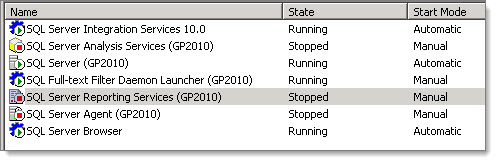
Starting the SSRS service resolved the issue and the useless error message went away!
Steve Endow is a Dynamics GP Certified Trainer and Dynamics GP Certified IT Professional in Los Angeles. He is also the owner of Precipio Services, which provides Dynamics GP integrations, customizations, and automation solutions.
http://www.precipioservices.com
Tuesday, July 24, 2012
Dynamics GP Window Opens Automatically When GP Is Launched
Today I fielded an interesting question on Experts Exchange regarding a random Dynamics GP window that was opening when a user logged into GP 2010.
It started out as an error message when the user logged in, saying "You don't have security privileges to open this window." Most of us are familiar with this message.
So the consultant solved that problem with David Musgrave's instructions and the Support Debugging Tool. In the process, he discovered that the window that was causing the error was the Report Schedule window. The what? I haven't had a client that used the GP Report Scheduler, so I had to dig out the documentation just to find the window.
So now that the permissions were fixed, the Report Schedule window would open automatically every time the user logged in. This is pretty odd, since the user doesn't use the Report Schedule window, and never had permissions to open it. And the fact that it was opening automatically was pretty strange as well.
So we both reviewed the documentation, but didn't see any option that would cause the window to open automatically.
The only other thing I could think of was that maybe a window shortcut had been placed in the user's Startup folder. But oddly, no shortcuts were displayed in the user's Startup folder in GP.
The consultant then had a pretty good idea--he traced the location of the user shortcuts to the DYNAMICS..SY01990 table. He then queried that table for the specific user, and found that sure enough, there was a record for the Report Schedule window for that user.
He deleted the shortcut record from SY01990, and the window stopped opening automatically.
There might have been a few clues that we missed that explained how and why this happened, but the details that were found made it a pretty odd problem. Fortunately the fix was pretty easy--once the consultant found the mysterious shortcut record.
Steve Endow is a Dynamics GP Certified Trainer and Dynamics GP Certified IT Professional in Los Angeles. He is also the owner of Precipio Services, which provides Dynamics GP integrations, customizations, and automation solutions.
http://www.precipioservices.com
It started out as an error message when the user logged in, saying "You don't have security privileges to open this window." Most of us are familiar with this message.
So the consultant solved that problem with David Musgrave's instructions and the Support Debugging Tool. In the process, he discovered that the window that was causing the error was the Report Schedule window. The what? I haven't had a client that used the GP Report Scheduler, so I had to dig out the documentation just to find the window.
So now that the permissions were fixed, the Report Schedule window would open automatically every time the user logged in. This is pretty odd, since the user doesn't use the Report Schedule window, and never had permissions to open it. And the fact that it was opening automatically was pretty strange as well.
So we both reviewed the documentation, but didn't see any option that would cause the window to open automatically.
The only other thing I could think of was that maybe a window shortcut had been placed in the user's Startup folder. But oddly, no shortcuts were displayed in the user's Startup folder in GP.
The consultant then had a pretty good idea--he traced the location of the user shortcuts to the DYNAMICS..SY01990 table. He then queried that table for the specific user, and found that sure enough, there was a record for the Report Schedule window for that user.
He deleted the shortcut record from SY01990, and the window stopped opening automatically.
There might have been a few clues that we missed that explained how and why this happened, but the details that were found made it a pretty odd problem. Fortunately the fix was pretty easy--once the consultant found the mysterious shortcut record.
Steve Endow is a Dynamics GP Certified Trainer and Dynamics GP Certified IT Professional in Los Angeles. He is also the owner of Precipio Services, which provides Dynamics GP integrations, customizations, and automation solutions.
http://www.precipioservices.com
Friday, July 20, 2012
Management Reporter and Analytical Accounting
Some clients are "lucky" enough to be the ones to uncover Quality Reports for Microsoft. And it seems like some clients do a better job of it than others, or at least it seems that way :) Recently, I have been working with a client who has encountered several bugs within Management Reporter. Now, the good news is that they are all resolved in MR 2012....
But I thought it would be good to document the latest, as my coworkers and others expressed a lot of skepticism when I explained the scenario. They insisted that there must be a logical reason for it. But, alas, there is not any explanation other than it being a Quality Report (confirmed by Microsoft).
Here is the scenario, it assumes that all companies are using the same report set in Management Reporter:
Confirmed with Microsoft that this is resolved in MR 2012, but wanted to share the info...as this definitely had me baffled :)
Christina Phillips is a Microsoft Certified Trainer and Dynamics GP Certified Professional. She is a supervising consultant with BKD Technologies, providing training, support, and project management services to new and existing Microsoft Dynamics customers. This blog represents her views only, not those of her employer.
But I thought it would be good to document the latest, as my coworkers and others expressed a lot of skepticism when I explained the scenario. They insisted that there must be a logical reason for it. But, alas, there is not any explanation other than it being a Quality Report (confirmed by Microsoft).
Here is the scenario, it assumes that all companies are using the same report set in Management Reporter:
- Create a company in Management Reporter, do not include Analytical Accounting in the company configuration.
- Create a number of reports in the company. All of the reports generate successfully.
- Create a company in Management Reporter (using the same GP database as the company in Step 1), only this time include Analytical Accounting in the company configuration.
- Set the new "AA" company as the default.
- Take an existing report definition (created in the "non-AA" company) and change the company to the new "AA" company.
- Generate report.
- Expected results- report should generate, as the account format is the same (since both companies point to the same GP database) and although analytical accounting is enabled for the current company...you are not required to use any of those segments in the row, column, or tree.
- Actual results- report yields no data
- Open a report definition created in the "non-AA" company
- Do a Save As, and change the company on the report definition to the "AA" company
- Change the building blocks to be building blocks (rows, column, tree) created in the "AA" company
- Generate the report, still no data!
- Only if all building blocks, including the report definition, are created in the "AA" company will the report pull data.
Confirmed with Microsoft that this is resolved in MR 2012, but wanted to share the info...as this definitely had me baffled :)
Christina Phillips is a Microsoft Certified Trainer and Dynamics GP Certified Professional. She is a supervising consultant with BKD Technologies, providing training, support, and project management services to new and existing Microsoft Dynamics customers. This blog represents her views only, not those of her employer.
Tuesday, July 10, 2012
New Post Master Enterprise Windows Service Posts Dynamics GP Batches Automatically
Over three years ago, I was helping a client import tens of thousands of transactions into Dynamics GP using eConnect integrations that I had developed.
eConnect worked great, quickly and reliably importing the transactions into Dynamics GP, with full data validation in the process.
But the one thing that eConnect (or Web Services or Integration Manager) cannot do is post batches in Dynamics GP. Unfortunately, Dynamics GP does not have any feature to programmatically post batches, and there is no standard option or feature that will allow you to automatically post batches in GP or even schedule batch posting. You can use the Series Post or Master Posting windows in GP to post multiple batches at once, but that process must be activated manually by a GP user and must be performed separately in each company. If you have dozens or hundreds of companies with intercompany batches in each, posting batches can be a very tedious and time consuming process.
While searching for a Dynamics GP auto-posting solution in 2009, I came across Post Master by Envisage Software, which was a new solution developed with Microsoft .NET that could automatically post batches in Dynamics GP. It could even detect new batches, post them on a scheduled basis, and generate the batch posting reports as text files, PDF files, or send them via e-mail.
Over the last three years, Envisage Software has enhanced Post Master, adding features such as pre- and post- stored procedures that allow customers to execute custom SQL scripts before and after batches are queued or posted in Dynamics GP. Post Master can also be customized to post additional modules, such as Project Accounting transactions that don't have a traditional batch posting process.
Despite the great features of Post Master and it's strong success with Dynamics GP customers, there was still one limitation of Dynamics GP that customers were looking to work around: The need to have Dynamics GP running and logged in to post a batch. As a Dynamics GP Add-In, Post Master requires that the Dynamics GP client be running and logged in. This means that a Dynamics GP client must be kept running and logged in at all times, and that GP login consumes a user license, which essentially costs a customer several thousand dollars.
Over the last year, Andrew Dean at Envisage Software has been developing a brand new product that finally eliminates this limitation.
Envisage Software has just released Post Master Enterprise, an entirely new product that runs as a standard Windows Service and can automatically post Dynamics GP batches without having the GP client running or logged in.
Because it runs as a Windows Service, it does not require an active Windows session, and because it doesn't require Dynamics GP to be running or logged in, it does not consume a GP user license. The Windows Service design is a great benefit for system administrators who previously had to ensure that a GP session stayed running at all times, even after a server reboot. And because Post Master Enterprise does not require that a GP user license be tied up all day, companies can reclaim the several thousands of dollars that they have invested in the user license for a real GP user to utilize.
Post Master Enterprise has all of the features of Post Master "Standard", including full batch posting reporting capabilities, e-mail error notification, batch auto-detection, and automatic retry of failed batches.
Here is a video demo of Post Master Enterprise: (YouTube Link)
If you have a client with high transaction or batch volume, a client with a lot of GP databases that uses intercompany transactions, or a client that has to regularly sit around and wait for large batches to post, Post Master Enterprise has set a new standard for automating the Dynamics GP batch posting process.
I've been working with Andrew Dean at Envisage Software for the last two years reselling Post Master in the Americas. Post Master Standard has been a great success, and I expect Post Master Enterprise to revolutionize Dynamics GP batch posting.
For more information about Post Master Enterprise, you can contact Envisage Software Solutions at:
http://envisagesoftware.com/contactus/
Steve Endow is a Dynamics GP Certified Trainer and Post Master Enterprise reseller for Envisage Software Solutions. He is also the owner of Precipio Services, which provides Dynamics GP integrations, customizations, and automation solutions.
http://www.precipioservices.com
eConnect worked great, quickly and reliably importing the transactions into Dynamics GP, with full data validation in the process.
But the one thing that eConnect (or Web Services or Integration Manager) cannot do is post batches in Dynamics GP. Unfortunately, Dynamics GP does not have any feature to programmatically post batches, and there is no standard option or feature that will allow you to automatically post batches in GP or even schedule batch posting. You can use the Series Post or Master Posting windows in GP to post multiple batches at once, but that process must be activated manually by a GP user and must be performed separately in each company. If you have dozens or hundreds of companies with intercompany batches in each, posting batches can be a very tedious and time consuming process.
While searching for a Dynamics GP auto-posting solution in 2009, I came across Post Master by Envisage Software, which was a new solution developed with Microsoft .NET that could automatically post batches in Dynamics GP. It could even detect new batches, post them on a scheduled basis, and generate the batch posting reports as text files, PDF files, or send them via e-mail.
Over the last three years, Envisage Software has enhanced Post Master, adding features such as pre- and post- stored procedures that allow customers to execute custom SQL scripts before and after batches are queued or posted in Dynamics GP. Post Master can also be customized to post additional modules, such as Project Accounting transactions that don't have a traditional batch posting process.
Despite the great features of Post Master and it's strong success with Dynamics GP customers, there was still one limitation of Dynamics GP that customers were looking to work around: The need to have Dynamics GP running and logged in to post a batch. As a Dynamics GP Add-In, Post Master requires that the Dynamics GP client be running and logged in. This means that a Dynamics GP client must be kept running and logged in at all times, and that GP login consumes a user license, which essentially costs a customer several thousand dollars.
Over the last year, Andrew Dean at Envisage Software has been developing a brand new product that finally eliminates this limitation.
Envisage Software has just released Post Master Enterprise, an entirely new product that runs as a standard Windows Service and can automatically post Dynamics GP batches without having the GP client running or logged in.
Because it runs as a Windows Service, it does not require an active Windows session, and because it doesn't require Dynamics GP to be running or logged in, it does not consume a GP user license. The Windows Service design is a great benefit for system administrators who previously had to ensure that a GP session stayed running at all times, even after a server reboot. And because Post Master Enterprise does not require that a GP user license be tied up all day, companies can reclaim the several thousands of dollars that they have invested in the user license for a real GP user to utilize.
Post Master Enterprise has all of the features of Post Master "Standard", including full batch posting reporting capabilities, e-mail error notification, batch auto-detection, and automatic retry of failed batches.
Here is a video demo of Post Master Enterprise: (YouTube Link)
If you have a client with high transaction or batch volume, a client with a lot of GP databases that uses intercompany transactions, or a client that has to regularly sit around and wait for large batches to post, Post Master Enterprise has set a new standard for automating the Dynamics GP batch posting process.
I've been working with Andrew Dean at Envisage Software for the last two years reselling Post Master in the Americas. Post Master Standard has been a great success, and I expect Post Master Enterprise to revolutionize Dynamics GP batch posting.
For more information about Post Master Enterprise, you can contact Envisage Software Solutions at:
http://envisagesoftware.com/contactus/
Steve Endow is a Dynamics GP Certified Trainer and Post Master Enterprise reseller for Envisage Software Solutions. He is also the owner of Precipio Services, which provides Dynamics GP integrations, customizations, and automation solutions.
http://www.precipioservices.com
Subscribe to:
Posts (Atom)