It is not unusual, in my experience, for some local taxes to be set up as deductions. This most commonly occurs with an earnings tax or "head" tax that is based on an income threshold. For example, Denver has a "head" tax that only applies an individual who earns more than $500 in a month.
As you may already know, GP doesn't have the capability out of the box to calculate a threshold other than per pay period, year to date, or life to date. So, if we paid an employee weekly, or semimonthly but wanted a threshold to be based on a month...we would be out of luck.
For this reason, you might choose to set up your local tax as a deduction. This would allow you to include/exclude the deduction in the build, or enter transactions for the head tax. Of course, there are other ways to approach it including manually entering a local tax code when needed on the payroll transactions or creating a customization.
But for those of you that do use a deduction to track local taxes, it can present an issue at year end. If you map the deduction (using the W2 Box and Label fields from the Deduction Setup and Employee Deduction Maintenance windows) to the actual local tax field on a W2, the Microsoft Dynamics GP year end closing process for payroll will ignore the deduction. I assume this is because it knows that the local taxes set up in GP as local taxes (Payroll Local Tax Setup) belong in that field.
If we caught this before year end, we could simply code the deduction to a box and label that is not currently being used and then modify the W2 form in Report Writer so that the field prints in the local tax box instead. But what happens if we don't catch it in time?
Fortunately, if you can produce a spreadsheet of the employee ID with the tax amount and taxable wage, you can insert it in to the UPR10106 table, which is the Payroll Year End Local Table. Admittedly, I do this sort of thing a little oddly, but here it goes...
I add a column to my excel spreadsheet that says "INSERT INTO UPR10106 (RPTNGYR, EMPLOYID, SEQNUMBR, LOCLCODE, LOCLWGES, LCLINTAX, TAXTYPE) VALUES (".
Then I create a concatenated formula in Excel that appears like this:
=CONCATENATE(F2,"2011,'", A2,"',",1,",'DENVER',",D2,",",C2,",1",")")
To break these components down:
-F2 is the field with the static text mentioned above
-2011 is the hard coded reporting year for the W2
-A2 is the field with the Employee ID
-1 is the hard coded sequence number (I will discuss this more below)
-DENVER is the hard coded W2 Box Label/Local Code to appear on W2
-D2 is the field with the local taxable wages
-C2 is the field with the local tax
-1 is the hard coded tax type of City Income Tax (based on drop down in W2 Local Tax window)
Of course, you could choose to source the hard coded items from columns as well if you want. The end result of this is a series of INSERT scripts that can be run against the company database to update the UPR10106 by inserting records.
INSERT INTO UPR10106 (RPTNGYR, EMPLOYID, SEQNUMBR, LOCLCODE, LOCLWGES, LCLINTAX, TAXTYPE) VALUES (2011,'ACKE001',1,'DENVER',10000,50.00,1)
One thing to watch out for, though, is the sequence number. For each employee, for each year, the sequence number is an incremental number. So, for example, if an employee had two local taxes withheld, the first one would have a sequence number of 1 and the second would have a sequence number of 2. So if you have more than once local tax, you need to adjust the script accordingly. And if a local tax is already included in the UPR10106 table for the year you are updating, you would also need to take this in to consideration or you will get a primary key error when attempting to insert the records with a duplicate employee ID, year, and sequence number.
Good luck with year end, and always always always make a backup before attempting these or any other scripts :)
Christina Phillips is a Microsoft Certified Trainer and Dynamics GP Certified Professional. She is a supervising consultant with BKD Technologies, providing training, support, and project management services to new and existing Microsoft Dynamics customers. This blog represents her views only, not those of her employer.
Tuesday, January 10, 2012


Recapture Provision? What Recapture Provision?
We have had a few clients ask about the recapture provision of the payroll tax cut extension. Essentially, the recapture provision says that if an employee makes more than a set amount in the first two months of this year, the excess has to be taxed at 6.2%. What? How does that work?
Well, fortunately Terry Heley at Microsoft wrote a fabulous blog post explaining this provision and why GP doesn't do it...
Check it out!
Christina Phillips is a Microsoft Certified Trainer and Dynamics GP Certified Professional. She is a supervising consultant with BKD Technologies, providing training, support, and project management services to new and existing Microsoft Dynamics customers. This blog represents her views only, not those of her employer.
Well, fortunately Terry Heley at Microsoft wrote a fabulous blog post explaining this provision and why GP doesn't do it...
Check it out!
Christina Phillips is a Microsoft Certified Trainer and Dynamics GP Certified Professional. She is a supervising consultant with BKD Technologies, providing training, support, and project management services to new and existing Microsoft Dynamics customers. This blog represents her views only, not those of her employer.
Tuesday, January 3, 2012
1099 Reporting, Or Not?
Recent versions of Dynamics GP have included terrific enhancements to 1099 tracking. The ability to track 1099 amounts per type and box at a transaction level allows users to track in greater detail without having to assume that all of a vendor's payments go to the same 1099 type and box number.
Along with these enhancements, though, there are not a lot of great reporting capabilities to review this information by type and box. Of course, you can inquire on the information easily (Inquiry--Purchasing--Vendor 1099 Details, Cards--Purchasing--1099 Details).


However, if we look at the 1099 fields available directly in SmartList, we will see that they are the "Amounts Since Last Close" summary fields. Which means that they are not date sensitive (they would be based on the last time you closed the calendar year for Purchasing), and they also do not include amounts by 1099 type and 1099 box although you can display the vendor's default 1099 type. So, this may work okay if a vendor uses only one type and one box, and you are confident that you closed the Purchasing module on time for the prior calendar year and did not post back to the prior year or forward to the new year.
So, what about reporting? Yes, you can print a report from Cards--Purchasing--1099 Details, but is only available for one vendor at a time. In the past, I would tell users to print the 1099 edit list from Routines--Purchasing--Print 1099.


Now, at this point, you could use this SmartList as is but you would get multiple lines for each vendor since it would list out the amounts per box per period. If you would prefer to condense the SmartList to one line per vendor, per type, and per box you can make it a summary SmartList. To do this, you can click the Options button in the upper right corner of the SmartList Builder window.


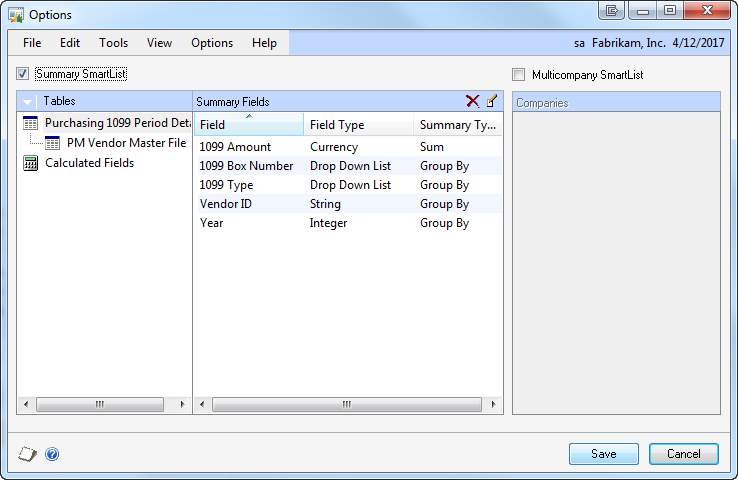
For the PM Vendor Master File, we have set many of the fields to Maximum. Keep in mind that since we are grouping by Vendor ID, the fields should be the same for each vendor. So when we say to pull the Maximum, we are simply saying to pull that common value for the vendor. In this case, we also set to group by the Vendor Check Name. This is redundant, though, since we have already grouped by vendor ID.

Good luck and happy new year!!
Christina Phillips is a Microsoft Certified Trainer and Dynamics GP Certified Professional. She is a supervising consultant with BKD Technologies, providing training, support, and project management services to new and existing Microsoft Dynamics customers. This blog represents her views only, not those of her employer.
Along with these enhancements, though, there are not a lot of great reporting capabilities to review this information by type and box. Of course, you can inquire on the information easily (Inquiry--Purchasing--Vendor 1099 Details, Cards--Purchasing--1099 Details).

Cards--Purchasing--1099 Details
1099 Details window
The issue with these windows is that you have to review the 1099 information vendor by vendor. This is normally fine if you have a small amount of 1099 vendors. But for those users who have 100, 200, or even 500 1099 vendors, a report or export is much easier to use.
So, we look to SmartList, where there are 1099 fields available...

Microsoft Dynamics GP--SmartList--Purchasing--Vendors
With 1099 fields added
So, what about reporting? Yes, you can print a report from Cards--Purchasing--1099 Details, but is only available for one vendor at a time. In the past, I would tell users to print the 1099 edit list from Routines--Purchasing--Print 1099.

Routines--Purchasing--Print 1099
1099 Edit List
Although this report is based on the actual transaction dates (therefore it is date sensitive), it does not break out the 1099 amounts by 1099 type and box. So, although it may work better than the SmartList, it still would work best for those vendors that use the same 1099 type and box.
So what to do if you have a variety of vendors with a variety of 1099 types and boxes? Aside from actually printing the 1099 themselves to review? Well, if you have SmartList Builder, it is not all that hard to create a summary SmartList to display 1099 information. There are two primary tables involved:

The Purchasing 1099 Period Detail table includes the key fields necessary for reporting the 1099 amounts by box and type:

It is important to note that the 1099 Box Number noted in this table is NOT the actual 1099 box number. Rather it is an incremental number assigned to the boxes in order. So, for example the second box on a 1099-DIV is actually labeled as box 1b on the 1099 form but it would be noted as 1099 Box Number 2 in this table. I also added the PM Vendor Master file to the SmartList, in order to pull the vendor's Tax ID Number and address.

SmartList Builder Options button
Options Window
Select table to display summary options
Mark the Summary SmartList checkbox in the Options window to convert the SmartList to a summarized a version. Then for each field available in the SmartList, you must select the Summary Type. To change the Summary Type, double-click on the field. In the first screenshot above, we are selecting the options for the fields in the Purchasing 1099 Period Details SmartList. Note that we select the option of Group By on those fields we want to summarize by... in this case, by 1099 Box Number, 1099 Type, Vendor ID, and Year. The 1099 Amount field is then set to be a Sum.
You may also want to add a restriction to display only those summaries with a 1099 amount greater than zero.

SmartList Builder Restrictions button
Restrictions window
Click the Restrictions button at the top of the SmartList Builder window to add a restriction.
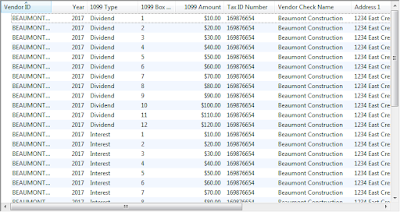
The final SmartList will appear something like this:
Summary SmartList Grouped by 1099 Box Number, 1099 Type, Year, and Vendor ID
The final SmartList will display the summarized information, including the 1099 Amount by type and box number (keeping in mind that is the sequential box number). For extra credit, you can even create a series of calculated fields to break the amount out in the correct box labels. If you do this using a CASE statement to test for the sequential box number, a couple things to keep in mind...
1. Because box labels change for 1099 type, I would suggest creating a separate SmartList for each 1099 type and adding a restriction to only display one 1099 type per SmartList.
2. You will want to remove the group by on the 1099 Box Number and not display it in the SmartList. As you will be summarizing only by the 1099 Type, Year, and Vendor ID. The calculated fields will then display (with a separate column for each box) the amounts broken out by box.
Here is a sample of a CASE statement used to pull an amount for a specific box. You will need a separate calculated field for each box on the 1099.
CASE WHEN {Purchasing 1099 Period Detail:1099 Box Number}= '1' THEN {Purchasing 1099 Period Detail:1099 Amount} ELSE 0.00 END
Christina Phillips is a Microsoft Certified Trainer and Dynamics GP Certified Professional. She is a supervising consultant with BKD Technologies, providing training, support, and project management services to new and existing Microsoft Dynamics customers. This blog represents her views only, not those of her employer.
Thursday, December 22, 2011
Management Reporter Size Limitation
Over the past couple of weeks, I have been working with a client on a series of odd Management Reporter issues. The first issue they reported happened when they were working with trees. The user would add a branch to a tree in MR, and then enter a series of dimension codes for that branch. Randomly, it seemed, the dimensions code would not save on some branches of the tree. Odd. The tree branch/unit would be there, but the dimension field would be blank.
So, we spent some time one afternoon trying to figure out some sort of common thread with the disappearing dimensions. It seemed like different combinations of dimensions would cause the issue. After talking with Microsoft, it was determined that the issue is a 512 character limitation on the dimension field in the tree. So, when you add multiple dimensions to a tree branch/unit, it may add up to 512 pretty quickly since MR includes the dimension name for each dimension you include.
I know that this may be working as designed, but this seems like something that many users would encounter over time-- particularly those with large/long account strings.
As a workaround, I suggested that the client used dimension sets on the branches of the tree instead. And this worked great, except that there also appears to be a size limitation on the dimension set as well. So if the user tries to add too many dimension combinations (apparently also variable based on the dimension name and other characters included in the string) it also causes a series of errors. In this client's case, they would get one of the following errors:
I know that both of these issues may seem to minor for a lot of clients. But as I have recently been working on MR reports for a Dynamics AX client with a large account string and long chart of accounts, I do worry that we might start to hit up against these sort of issues more frequently. The workarounds that seem to be available for now include:
Christina Phillips is a Microsoft Certified Trainer and Dynamics GP Certified Professional. She is a supervising consultant with BKD Technologies, providing training, support, and project management services to new and existing Microsoft Dynamics customers. This blog represents her views only, not those of her employer.
So, we spent some time one afternoon trying to figure out some sort of common thread with the disappearing dimensions. It seemed like different combinations of dimensions would cause the issue. After talking with Microsoft, it was determined that the issue is a 512 character limitation on the dimension field in the tree. So, when you add multiple dimensions to a tree branch/unit, it may add up to 512 pretty quickly since MR includes the dimension name for each dimension you include.
I know that this may be working as designed, but this seems like something that many users would encounter over time-- particularly those with large/long account strings.
As a workaround, I suggested that the client used dimension sets on the branches of the tree instead. And this worked great, except that there also appears to be a size limitation on the dimension set as well. So if the user tries to add too many dimension combinations (apparently also variable based on the dimension name and other characters included in the string) it also causes a series of errors. In this client's case, they would get one of the following errors:
- Object is currently in use elsewhere
- Column ‘ParentAccountSetID, LinkIndex’ is constrained to be unique. Value ‘8e1f4448-f5c1-461a-b898-f7c7cc572bf2,23’ is already present
In both cases, it would force Management Reporter to close and the building block would then be checked out to the user. The second error message above is possibly a quality report (per Microsoft) and is being analyzed, it does appear to be caused by some sort of limitation on the size of dimension set.
I know that both of these issues may seem to minor for a lot of clients. But as I have recently been working on MR reports for a Dynamics AX client with a large account string and long chart of accounts, I do worry that we might start to hit up against these sort of issues more frequently. The workarounds that seem to be available for now include:
- Keeping dimension sets small
- Using dimension sets instead of including large lists of dimensions on a tree
- Using ranges and/or wildcards wherever possible to decrease the number of characters used
- Use shorter names for your segments, so that they take up less space when repeated in a dimension list
Christina Phillips is a Microsoft Certified Trainer and Dynamics GP Certified Professional. She is a supervising consultant with BKD Technologies, providing training, support, and project management services to new and existing Microsoft Dynamics customers. This blog represents her views only, not those of her employer.
Friday, December 16, 2011
Helpful Microsoft Forecaster Scripts
I know I have been quite absent from the blogosphere lately, but I hope that Steve has been keeping everyone entertained (or at least keeping you in deep thought over complex technical issues). I wish I could say that I was on a boat in the middle of the ocean with not a care in the world, or sitting on a beach somewhere with a frosty beverage in hand. But, alas, that is not the case. Sadly, my father passed away last week after an 8-month battle with pancreatic cancer. Cancer sucks.
But, on to something helpful regarding Forecaster. When working with a large chart of accounts, it can be helpful to use SQL scripts to compare your line sets with your segment setup, or check to see if every department has a line set assigned as an override. Here are a few scripts I have used to help with these sorts of reviews.
--Identify the assignable segment values (Setup>>Segments) that do not have an override line set defined (Setup-Budgets-Input Set-Overrides tab), does not include assignable segments defined as summary departments. Note that depending on the position of your assignable segment in your segment definition, you may need to modify this to use a different M_SEG table (e.g., M_SEG2).
select M_SEG1.ID, M_SEG1.Label from M_SEG1 where M_SEG1.ID not in (Select Z_INP_SEG2.SEG1 from Z_INP_SEG2) and M_SEG1.LN=-1
--Identify accounts in line sets (Build-Lines) that are not set up in the master (Setup-Segments). This is helpful when you have created line sets by copying and pasting, rather than using the wizard and/or inserting from segments. Note that depending on the position of your main/reversable segment in your segment definition, you may need to modify this to use a different M_SEG table.
select Z_LIN.LINE, Z_LIN.CODE from Z_LIN where Z_LIN.CODE not in (select M_SEG0.ID from M_SEG0)
--Here is the opposite of the script above, this one identifies accounts that are in the account master (Setup-Segments) but doesn't exist in a line set (Build-Lines) to ensure you caught everything. Same note about the M_SEG table applies here as well.
select M_SEG0.ID, M_SEG0.LABEL from M_SEG0 where M_SEG0.ID not in (select Z_LIN.CODE from Z_LIN)
I am looking forward to getting back in to the swing of things here on the blog, and I hope everyone is enjoying their holiday season!
Christina Phillips is a Microsoft Certified Trainer and Dynamics GP Certified Professional. She is a supervising consultant with BKD Technologies, providing training, support, and project management services to new and existing Microsoft Dynamics customers. This blog represents her views only, not those of her employer.
But, on to something helpful regarding Forecaster. When working with a large chart of accounts, it can be helpful to use SQL scripts to compare your line sets with your segment setup, or check to see if every department has a line set assigned as an override. Here are a few scripts I have used to help with these sorts of reviews.
--Identify the assignable segment values (Setup>>Segments) that do not have an override line set defined (Setup-Budgets-Input Set-Overrides tab), does not include assignable segments defined as summary departments. Note that depending on the position of your assignable segment in your segment definition, you may need to modify this to use a different M_SEG table (e.g., M_SEG2).
select M_SEG1.ID, M_SEG1.Label from M_SEG1 where M_SEG1.ID not in (Select Z_INP_SEG2.SEG1 from Z_INP_SEG2) and M_SEG1.LN=-1
--Identify accounts in line sets (Build-Lines) that are not set up in the master (Setup-Segments). This is helpful when you have created line sets by copying and pasting, rather than using the wizard and/or inserting from segments. Note that depending on the position of your main/reversable segment in your segment definition, you may need to modify this to use a different M_SEG table.
select Z_LIN.LINE, Z_LIN.CODE from Z_LIN where Z_LIN.CODE not in (select M_SEG0.ID from M_SEG0)
--Here is the opposite of the script above, this one identifies accounts that are in the account master (Setup-Segments) but doesn't exist in a line set (Build-Lines) to ensure you caught everything. Same note about the M_SEG table applies here as well.
select M_SEG0.ID, M_SEG0.LABEL from M_SEG0 where M_SEG0.ID not in (select Z_LIN.CODE from Z_LIN)
I am looking forward to getting back in to the swing of things here on the blog, and I hope everyone is enjoying their holiday season!
Christina Phillips is a Microsoft Certified Trainer and Dynamics GP Certified Professional. She is a supervising consultant with BKD Technologies, providing training, support, and project management services to new and existing Microsoft Dynamics customers. This blog represents her views only, not those of her employer.
Monday, December 12, 2011
Decisions Fall 2011 On Demand Presentations Now Available
In case you missed the excellent MS Dynamics World Decisions Fall 2011 virtual conference, all of the presentations are now available for replay on demand:
http://decisions.msdynamicsworld.com/
There are 12 Dynamics GP presentations available, plus presentations for AX, NAV, and CRM!
Steve Endow is a Dynamics GP Certified Trainer and Dynamics GP Certified IT Professional in Los Angeles. He is also the owner of Precipio Services, which provides Dynamics GP integrations, customizations, and automation solutions.
http://www.precipioservices.com
http://decisions.msdynamicsworld.com/
There are 12 Dynamics GP presentations available, plus presentations for AX, NAV, and CRM!
Steve Endow is a Dynamics GP Certified Trainer and Dynamics GP Certified IT Professional in Los Angeles. He is also the owner of Precipio Services, which provides Dynamics GP integrations, customizations, and automation solutions.
http://www.precipioservices.com
Thursday, December 1, 2011
GP Developer Tip: List All Parameters for a SQL Server Stored Procedure
Occasionally I work on a Dynamics GP integration where I have to call a Dynamics GP stored procedure from a .NET application. As always, there are several ways to do this, but I typically use one of two approaches.
In situations where the procedure returns one or more values in OUTPUT parameters, I usually like to call the stored procedure directly in a procedure (rather than rely on a separate call to a data access class). In this case, I use the very, very cool DeriveParameters method:
When you call DeriveParameters, .NET interrogates the stored procedure and builds a list of all of the parameter objects for you. This saves ALOT of typing, and ensures that all of the parameters are properly declared.
On the other hand, when I don't need to get return values from a stored procedure, I use my data access class, which requires an array of SqlParameter objects that includes the parameter name and data type. In this case, I have to assemble the array and assign the SqlParameters.
In this case I need the parameter name and data type. Some stored procedures are simple and only have a few parameters. But there are a few that have dozens of parameters, which makes this type of coding a tedious chore.
So make this process easier, I wanted to get a list of all of the stored procedure parameters.
It turns out that this is pretty easy--just use sp_help:
This provides a very nice parameter listing, with data types, that can be copied and pasted into Excel or text editor, and then easily converted into code.

Steve Endow is a Dynamics GP Certified Trainer and Dynamics GP Certified IT Professional in Los Angeles. He is also the owner of Precipio Services, which provides Dynamics GP integrations, customizations, and automation solutions.
http://www.precipioservices.com
In situations where the procedure returns one or more values in OUTPUT parameters, I usually like to call the stored procedure directly in a procedure (rather than rely on a separate call to a data access class). In this case, I use the very, very cool DeriveParameters method:
gpCommand = sqlConn.CreateCommand();
gpCommand.CommandType = CommandType.StoredProcedure;
gpCommand.CommandText = "zDP_PM10200SI";
//Get all of the parameters from the stored procedureSystem.Data.SqlClient.SqlCommandBuilder.DeriveParameters(gpCommand);
When you call DeriveParameters, .NET interrogates the stored procedure and builds a list of all of the parameter objects for you. This saves ALOT of typing, and ensures that all of the parameters are properly declared.
On the other hand, when I don't need to get return values from a stored procedure, I use my data access class, which requires an array of SqlParameter objects that includes the parameter name and data type. In this case, I have to assemble the array and assign the SqlParameters.
SqlParameter[] sqlParameters = new SqlParameter[29];
sqlParameters[0] = new SqlParameter("@EMPLOYID", System.Data.SqlDbType.VarChar, 15);
sqlParameters[1] = new SqlParameter("@ID_Accrual_Code", System.Data.SqlDbType.VarChar, 11);
sqlParameters[2] = new SqlParameter("@ID_Accrual_Code_2", System.Data.SqlDbType.VarChar, 11);
In this case I need the parameter name and data type. Some stored procedures are simple and only have a few parameters. But there are a few that have dozens of parameters, which makes this type of coding a tedious chore.
So make this process easier, I wanted to get a list of all of the stored procedure parameters.
It turns out that this is pretty easy--just use sp_help:
sp_help zDP_PM10200SI
This provides a very nice parameter listing, with data types, that can be copied and pasted into Excel or text editor, and then easily converted into code.

Steve Endow is a Dynamics GP Certified Trainer and Dynamics GP Certified IT Professional in Los Angeles. He is also the owner of Precipio Services, which provides Dynamics GP integrations, customizations, and automation solutions.
http://www.precipioservices.com
Subscribe to:
Posts (Atom)